
In this article 7 sections
Thursday, status call. The client asks: “That thing on the pricing page, is it fixed?” You scroll a list of 23 reports titled “Button”, “Mobile” and “Here”, open screenshots one by one, and after four minutes you are still not sure which one they mean.
Feedback happens on a page, in a spot. A list takes the spot away. This post shows how to review feedback on the live website instead: every report back where it was left, as a pin on the element, with its status and discussion one click away.
Why a list of reports loses the page
A report is spatial. “The price is cut off” means one line of one table at one width. Once it becomes a row in a list, whoever reads it has to rebuild that context: open the screenshot, find the page, scroll to the element, guess whether it still looks the same.
That rebuilding happens again and again:
- when the developer picks the report up,
- when the project manager checks whether it is done,
- when the client asks what changed since last week.
Two people reporting the same element also look like two separate problems in a list. On the page, they are two pins on the same button.
What review mode shows
Review mode is the Zorko widget in reading mode. Open the site in review mode and:
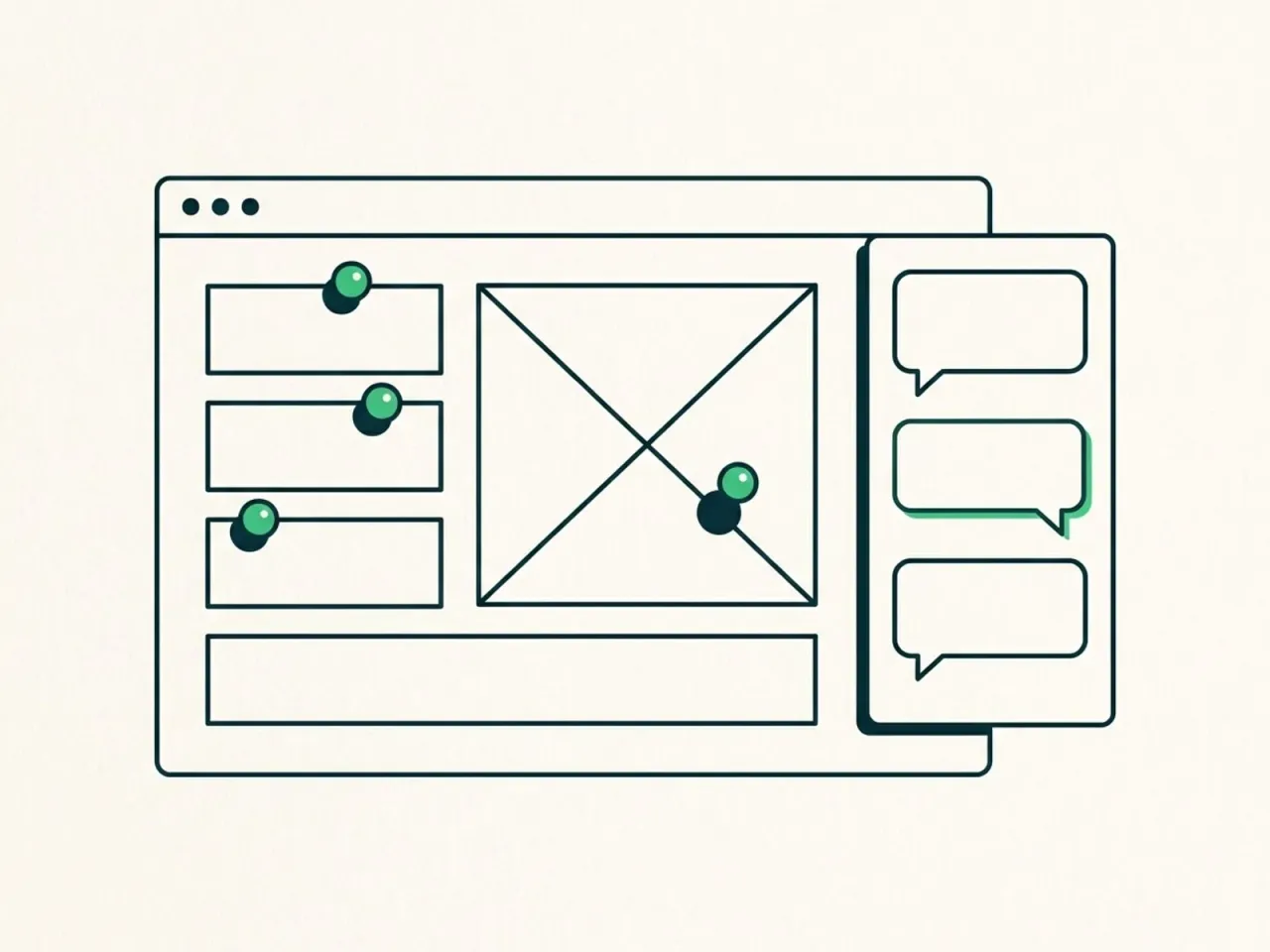
- Every report on the page appears as a pin on the spot where it was left.
- A drawer on the right lists the reports, with a switch between This page and All pages. A report from another page links straight to that page.
- Each report has its status (Active, In progress, Done), the reporter’s message, the screenshot or screen recording, and a comment thread.
- You can change a status or reply from the drawer, without going back to the dashboard.
The page itself does not move. The drawer lies over the page instead of pushing it aside, so the pins stay on the elements they point at.
How to review feedback on a live website, step by step
- Open it from the dashboard. The eye button on the project card creates a review link for that project. “Open in review mode” takes you to the site with the pins already on.
- Walk the page top to bottom. Click a pin, read the report, look at the element as it is now. Fixed? Set it to Done. Needs work? In progress, plus a comment for the developer.
- Switch to All pages to see what is left elsewhere, and follow the link to the next page.
- Close the drawer when it gets in the way. A click on the page or Escape closes it, and the pins stay. “Show list” on the bar brings it back, “Exit” leaves review mode.
- Send the client a review link. Pick how long it works (1, 7 or 30 days) and send it. The client opens their own site and sees the same pins, statuses and comments, and can reply in the thread. No Zorko account needed.
That last step is what changes the Thursday call. Instead of “is it fixed?”, the client opens the link before the call and sees the pricing pin marked Done, with your comment underneath.
It pays off most in the last review round before launch. The client walks the site with the link, sees which of their notes are done and which are still in progress, and signs off on what is in front of them rather than on a list in an email. For everything else to check that week, see the website launch checklist.
If the reports themselves are thin (“doesn’t work”), the fix is upstream: see our bug report template, and the widget fills in the page URL, browser, device and window size on its own.
Review links and the public view: who sees what
Review mode is not on for every visitor. It shows for:
- Someone with a review link. Whoever opens it sees every report on the site and can reply or change a status until the link expires. Creating a new link does not cancel an older one, so pick the shortest validity that fits the job.
- Everyone, if you turn on the public view. Per project, off by default. With it on, any visitor of the site can open the list of reports and read them, but not comment or change statuses. Reporters’ e-mail addresses stay hidden.
Without either, the widget only collects feedback and shows nothing that was reported. You can read more on how the widget works.
Where it falls short
Being honest about the limits saves you a confused call:
- Pins follow the reporter’s window. A pin is saved as a position on the page as the reporter saw it. If you review in a very different window width, a pin can land next to its element instead of on it. The screenshot in the report always shows the exact moment, so open it when a pin looks off.
- Only the current page has pins. A pin from another page would point at a layout that is not on screen, so those reports show in the list with a link to their page.
- Content that moved since the report (a new section above it, a longer headline) can shift pins the same way.
Count it yourself
Take your last review round and fill in three numbers:
- how many reports it had,
- how many minutes it took to find the page and element for each one (be honest, including the ones you had to ask about),
- how many times the client asked “is this done?” by email or on a call.
Say a round has 25 reports and each takes 3 minutes to locate, read twice (developer, then PM): that is 150 minutes spent rebuilding context. Add a 30-minute status call. This is an illustration, not a benchmark, but if your numbers look similar, checking reports on the page itself is where the time goes back.
Comparing tools that do this? Here is how we would go about choosing a website feedback tool.
Want to see your own client’s reports as pins on their site? Start free: one script tag, no credit card, and the client never needs an account.
FAQ
Does the client need a Zorko account to review?
No. Send a review link (valid 1, 7 or 30 days). The client opens their site through it and sees the pins, statuses and comments.
Can the client change statuses?
Yes, with a review link the client can reply and change a status. With the public view (no link), they can only read.
Will every visitor of the site see the pins?
No. Only people with a review link see them, unless you turn on the public read-only view for that project.
Does review mode work on staging?
Yes. It works wherever the widget runs, as long as the domain is one of the project’s allowed domains.