
In this article 7 sections
Friday, 16:40. A client reports that the booking form on their new site throws an error on the last step. The report lands in a shared inbox that three people glance at and nobody owns. It gets read on Monday at 10:15, after the client has called twice.
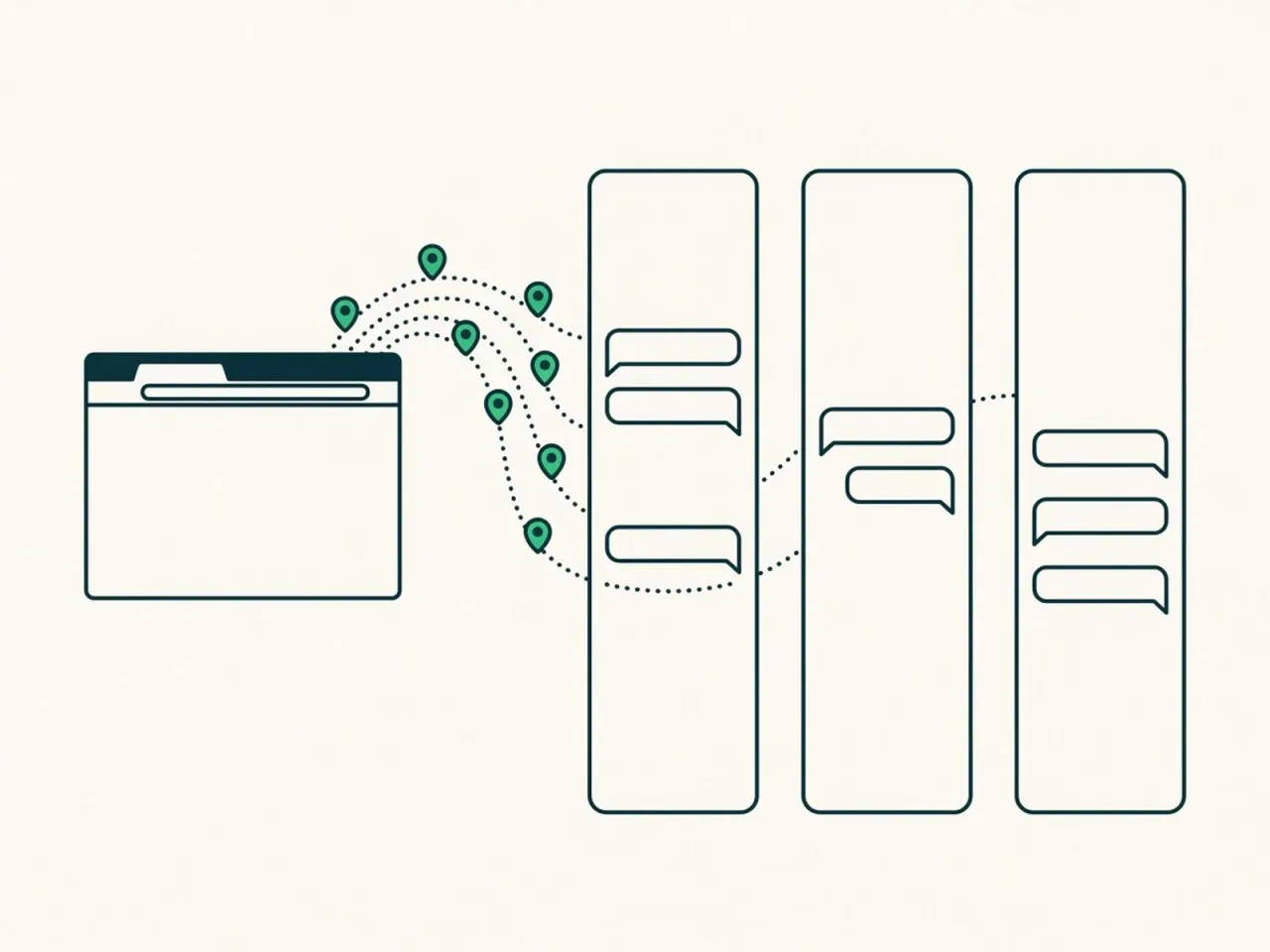
The report was fine. The routing was not. If your team already lives in Slack, the fix is to put each client’s feedback where the people working on that client already look: their own channel. This post shows how to set that up with a Slack incoming webhook per project, when email or a daily digest is the better fit, and how to send reports to other tools with a generic webhook.
Why one channel per client
A single #feedback channel for every client looks tidy for about two weeks. Then six projects share it, the developer on the dental clinic site scrolls past reports about the bakery shop, and people start muting the channel to get any work done.
A channel per client (or per project, for bigger clients) fixes three things at once:
- The right people see it. The designer and developer on that project are already in the channel.
- Context stays together. The report sits next to the discussion about that client, so a quick “on it” or “needs the client’s new photo” happens right there.
- Muting works in your favour. People can mute other projects’ channels without missing their own.
This is also where a visual feedback tool earns its place in Slack: a report that arrives with a screenshot, the page and the browser can be understood from the notification alone, without opening anything. If you are still choosing a tool, our guide to choosing a website feedback tool covers what to look for.
Step 1: Create a Slack incoming webhook
An incoming webhook is a URL that posts messages to one Slack channel. You create it once per channel. It takes about three minutes:
- Go to api.slack.com/apps and click Create New App, then From scratch. Give it a name your team will recognise (for example “Client feedback”) and pick your workspace.
- In the app settings, open Incoming Webhooks and switch Activate Incoming Webhooks on.
- Click Add New Webhook to Workspace, choose the client’s channel and allow access.
- Copy the URL. It looks like
https://hooks.slack.com/services/T000/B000/XXXX.
A few details that trip people up:
- One webhook, one channel. The channel is fixed when you create the webhook and cannot be changed from outside. For the next client, click Add New Webhook to Workspace again in the same app and pick their channel. One app can hold many webhooks.
- Private channels only appear in the list if you are a member of them.
- Treat the URL like a password. Anyone who has it can post into that channel. Keep it out of repos and shared docs. Slack revokes webhook URLs it finds leaked publicly, which is another reason not to paste it anywhere public.
Step 2: Connect it to the project in Zorko
In Zorko every project has its own Slack setting, which is what makes channel-per-client routing work:
- Open the project’s settings and go to the Integrations tab.
- Switch Slack on and paste the webhook URL.
- Save.
From now on every new report on that project posts a message to that channel: the project name, the page it came from, the browser and operating system, the reporter’s message and the screenshot. Repeat for each client project with its own webhook URL, and each client’s reports land in their own channel.
Slack gets new reports only. Status changes and comments stay in the dashboard, and the place to walk through open reports with the client is review mode on the live page, where each report shows as a pin where it was made.
Email, digest or Slack: who gets what
Slack is not the right channel for everyone. A founder who checks client work twice a week does not need a ping for every typo. Zorko has four notification routes, and they combine:
| Route | Set per | When it fires | Good for |
|---|---|---|---|
| Email on every report | Your account | Each new report | PMs who work from their inbox |
| Daily digest email | Your account | Once a day, at an hour you choose (UTC) | Owners and account managers who want the overview |
| Slack | Project | Each new report | The team doing the work, in the client’s channel |
| Generic webhook | Project | Each new report | Other tools, via your own endpoint or an automation |
A setup that works for many small agencies: the project team on Slack, the PM on instant email as a backup, the owner on the daily digest. Nobody gets the same report three times, and nothing waits for Monday.
Step 3: Other tools through the generic webhook
Zorko has no native Jira, Trello, Asana, ClickUp or Linear integration. What it has is a generic webhook per project, which is usually enough to get reports into those tools anyway.
Turn on Custom Webhook in the same Integrations tab and paste an HTTPS endpoint. On every new report, Zorko sends a POST with a JSON body: an event name (feedback.created), the project, and the report itself, including the message, page URL, browser, operating system, screenshot or video URL and the pin position.
You do not need to write a server for that. Zapier, Make and n8n all offer a “catch webhook” trigger that gives you a URL to paste in. From there, a two-step flow creates a Jira issue, a Trello card or a ClickUp task with the message as the title and the screenshot URL in the description. Be honest with yourself about maintenance: it is one more automation to keep an eye on, but it is a small one.
Count it at your end
An illustration, not data. Say your agency has 6 active client projects and gets about 40 reports a week. If each report sits in a shared inbox until someone forwards it to the right person, and that takes 2 minutes including finding who it belongs to, that is 80 minutes a week, roughly 5 to 6 hours a month of forwarding. The bigger cost is the delay: a bug reported on Friday afternoon and read on Monday is two days the client spent waiting.
Put your own numbers in: reports per week, minutes per forward, and how long a report waits before the right person sees it.
Zorko’s Slack and webhook notifications are available on every plan, including Free (1 project, 10 reports a month). For one channel per client you will want several projects, which is Pro at one flat price with no per-seat fees, see pricing. Create a free account and connect your first channel.
FAQ
Can one project post to two Slack channels?
Each project takes one Slack webhook URL, so one channel. If you need a second destination, use the generic webhook and route it through Zapier, Make or n8n to the other channel.
Is the Slack integration on the free plan?
Yes. Slack, email and webhook notifications are on Free and Pro. The difference is the number of projects: Free has one, Pro has unlimited.
Will Slack show status changes and comments?
No. Slack gets a message when a new report arrives. Statuses and comments are handled in the dashboard or in review mode on the site.
Can the client be in the Slack channel?
That is up to how you run your Slack workspace. The webhook posts into whatever channel you picked when you created it, and anyone in that channel sees the messages. Many agencies keep the report channel internal and talk to the client elsewhere.